How to use the iPhone and iPad function that prevents motion sickness
Animated dots on screens as a remedy for motion sickness: Apple's new feature integrated in iOS 18 and iPadOS 18
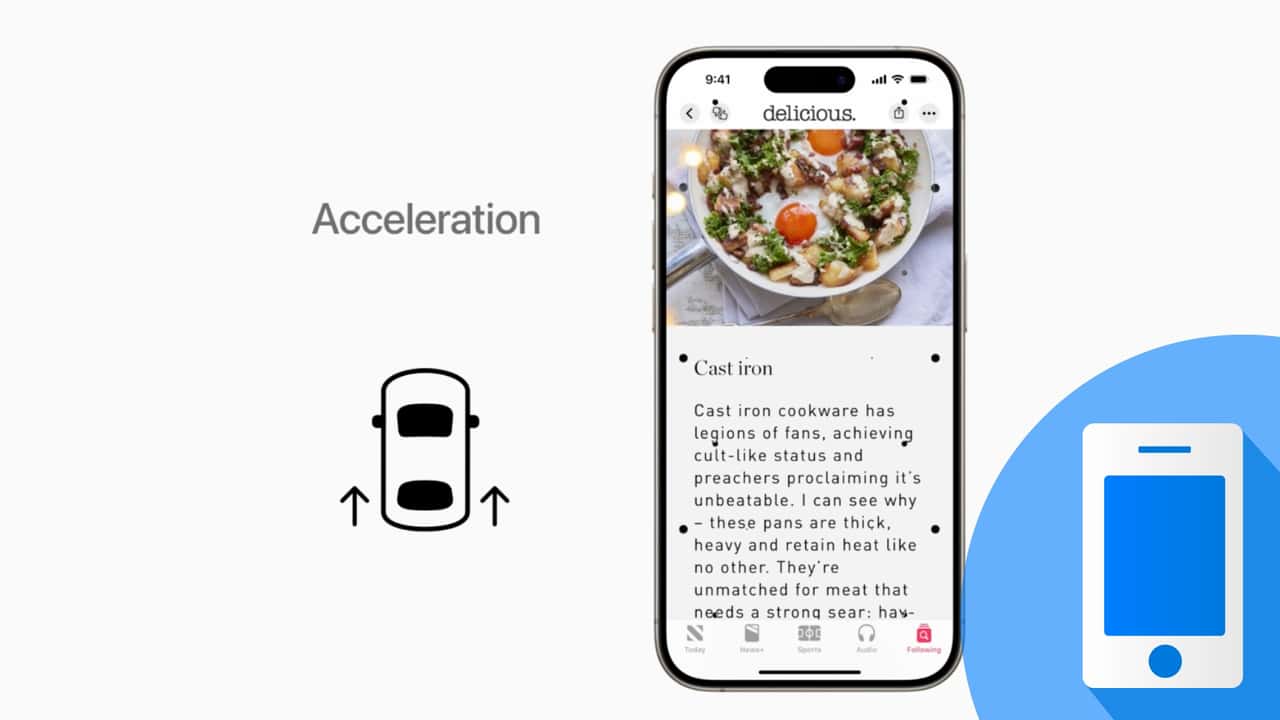

If you suffer from kinetosis, a condition that some people experience when using a phone or tablet in a car or moving vehicle, which can cause nausea, dizziness and abdominal discomfort, you can try a new feature in iOS 18 and iPadOS 18.
Called Vehicle Motion Indicators, this is an option that can be enabled on both the iPhone and iPad, and it adds animated dots to the edges of the screen without changing the content displayed, which should help reduce motion sickness.
How it works
When activated, the feature uses the built-in sensors in iPhones and iPads to recognise when the user is in a moving vehicle and display animated dots on the edges of the screen accordingly, which move according to the movements of the vehicle.
As can be seen in the video at the bottom, when driving through a left-hand bend the dots move to the right, and vice versa during a right-hand bend; when braking the dots move upwards and the opposite during acceleration.
All of this is designed to reduce the sensory conflict that underlies kinetosis and motion sickness - a conflict caused by the mismatch between what you see and what you feel," Apple explained in the post announcing the feature.
How it is activated
It is very simple to activate it, both on iPhone and iPad. In both cases, simply go to the Accessibility section of the Settings menu, and select Screen Effects. From there, simply tap Show motion indicators in vehicles to enable it, or select the Automatic option (absent on iPad) to have iPhone turn it on when it detects the user is in a car or other moving vehicle.
To show or hide motion indicators in vehicles, simply open the Control Centre and select the relevant icon (a car with dots next to it). If you wish, you can also quickly activate or deactivate it using the Accessibility Shortcut option in the Accessibility menu of your iPhone or iPad by pressing the side, home or top button three times, depending on your device.

As it is a feature of iOS 18 and iPadOS 18, you need to have a compatible iPhone or iPad to be able to use it, in addition to having the aforementioned versions of the operating systems installed:
- iOS 18: compatible with iPhone XR, Xs and Xs Max (2018) and later models;
- iPadOS 18: compatible with seventh-generation iPad (2019), fifth-generation iPad mini (2019), third-generation iPad Air (2019), first-generation iPad Pro 11 (2018) and second-generation iPad Pro 12.9 (2017) and newer models.
You might also be interested in:
RECOMMENDED FOR YOU

How Android Automotive has changed - the latest news
Mercedes-Benz Dealership Tells Woman She Needs A $12,600 Repair. Then She Catches A Worker In A Lie: 'Broke Down In Tears'
The latest Google Maps innovations now available and coming soon
Woman Goes To USA Gas For Fuel. Then She Realizes Their Gas Is Ethanol Free: 'This Is More Than I Usually Have'
Christian Von Koenigsegg On EVs And The Future Of Internal Combustion: Interview
Man Books Waymo From Airport To His House 10 Minutes Away. Then He Sees How Long It Actually Takes Him To Get There: 'I Hit Start'
BMW Says It Would 'Love' A New M1